
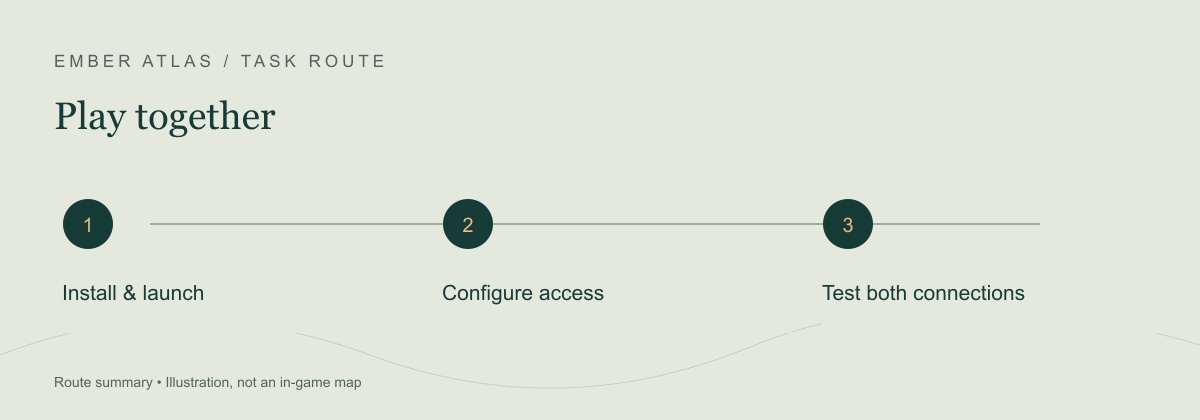
Install the Enshrouded Dedicated Server tool, start its executable once to create the configuration, then stop it before editing. Prove that you can join locally before troubleshooting an external connection; the two tests isolate different failures.[1]
Install and create the configuration
- On a Windows machine, find Enshrouded Dedicated Server in Steam’s Tools library. Install it, open Properties → Installed Files → Browse, and run the server executable. Keen’s support page recommends this executable rather than the Steam Launch button.[1]
- Close the server after its first run. Find
enshrouded_server.jsonbeside the executable. Keep an untouched copy before changing the server name or access groups. - Set a recognizable server name and separate administrator and friend passwords. A password selects a group; do not hand out the administrator password as the normal join password.[2]
- Start the server again. In the game, open Join and enable the dedicated-server filter. Search for the name you just configured. A server that has not finished starting is not yet ready for this test.
Prefer a command-line installation? Valve provides SteamCMD download and instructions ↗ (external site, opens in a new tab). The October community setup guide uses app_update 2278520 validate for the server app. This is a reported setup route; the Steam Tools method above remains the simplest starting point.[2]
Find the failing connection stage
| Observation | Next check |
|---|---|
| Cannot find or join on the host/local network | Check that the server is running, that the game/server versions match, and that the name and dedicated-server filter are correct. Inspect the server log before changing your router. |
| Local join works; a friend outside cannot join | Check the configured query port, Windows firewall and router forwarding to the server’s local address. A local success does not establish internet reachability. |
| Router forwarding looks right but external access still fails | Compare the router WAN address with the public IPv4 address. An upstream/CGNAT connection can prevent ordinary inbound forwarding. Ask the ISP about a public address rather than repeatedly adding rules. |
| A player joins but cannot extend a base | Check the password/group used and its permission flags. This is different from the menu’s Edit button failing. |
A recent Windows host reports using UDP query port 15637 and finding old multi-port instructions unnecessary. Treat that as a dated player report, not a reason to overwrite a deliberately customized port or a provider’s documented configuration.[2]
Update without losing the known-good setup
Stop the process, then copy the savegame folder and enshrouded_server.json outside the installation folder. Update the server, restart it, and repeat the local join test before inviting everyone back. Label backups with the date and game build so you can distinguish a pre-update world from a later session.[2]
Sources & verification
- Keen Games support ↗ (external site, opens in a new tab) — Official Windows installation and first-run configuration; older support article, checked 20 October 2026.
- r/Enshrouded: Windows installation guide ↗ (external site, opens in a new tab) — Community author’s October 2026 setup, networking, groups and backup procedure. Not independently reproduced here.